Getting Started
Karea is a task manager you can drive by clicking, by typing, by talking to its AI, or from your own AI assistant over MCP. These eight steps take you from a new account to a working setup in a few minutes.
1 Open your first project
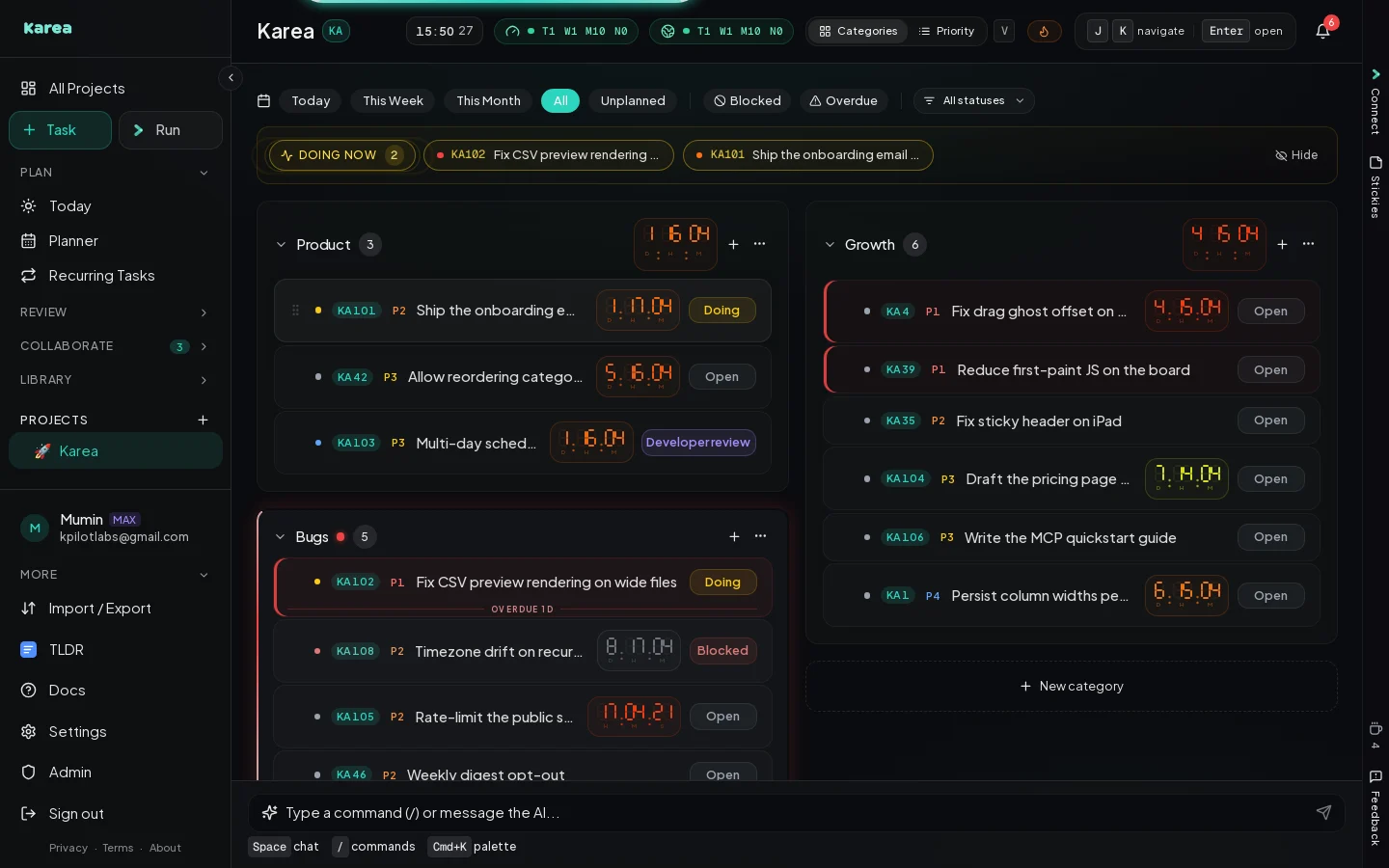
When you sign up, Karea opens your first project with a few example tasks. A project is a workspace; inside it, tasks are grouped into categories (the columns, such as Bugs or Growth). Add a category with New category at the end of the board, and a project with the + next to Projects in the sidebar, or type /np Client website.
The bar above the board filters by deadline (Today, This Week, Unplanned), by Blocked or Overdue, and by status. Press V to switch between the Categories and Priority views, and J / K to move through tasks.
2 Add tasks
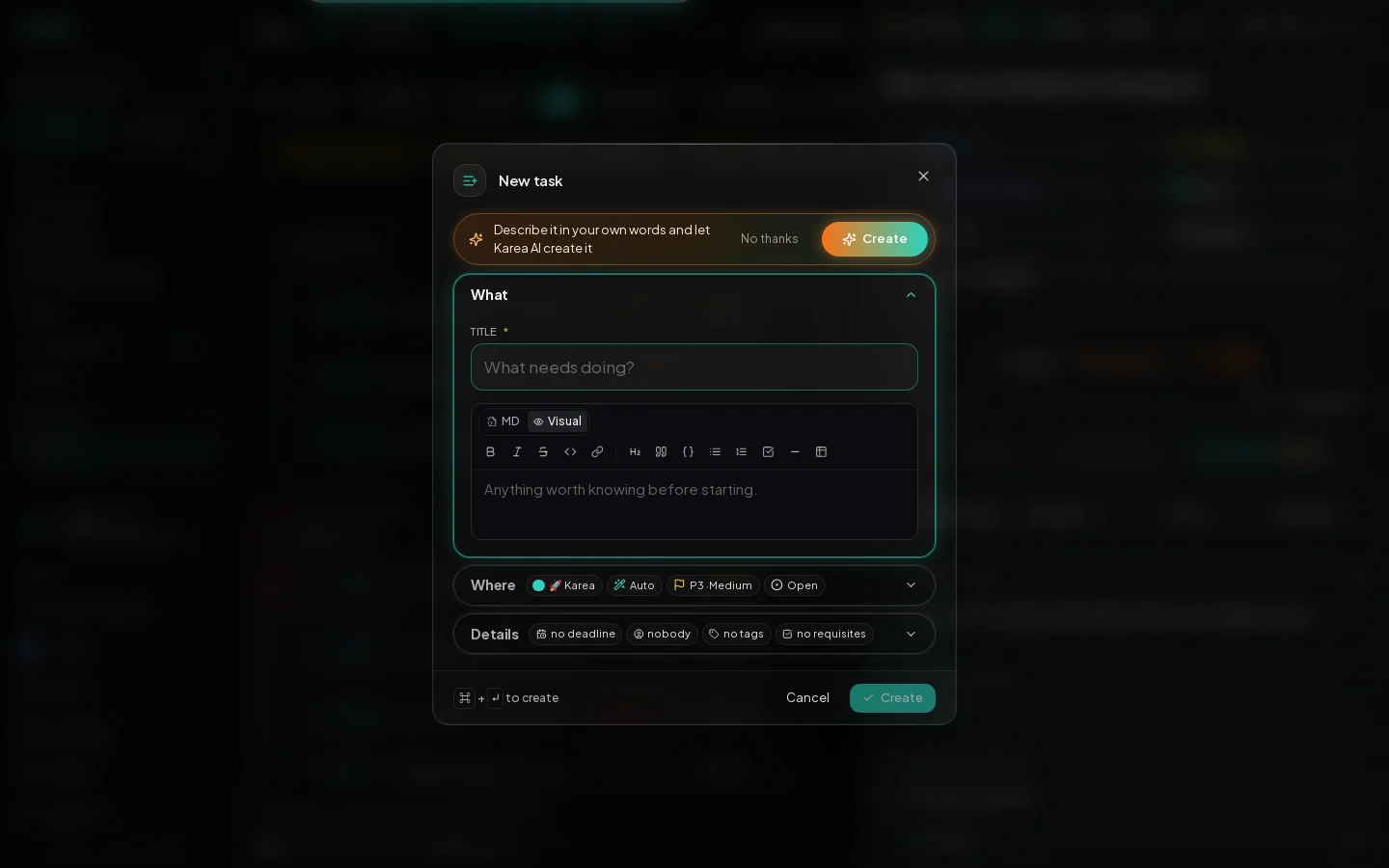
Click New task in the sidebar or press N. Fill in the title and, if you like, a deadline, priority, category, assignee and tags. Or choose Create on the Karea AI strip and just describe the task in your own words: Karea AI fills the form for you to check, or creates it straight away.
If you prefer typing, the command bar at the bottom of every page does the same in one line: /nt -cat Bugs -n Fix login redirect -prio 1 -sla tomorrow. See Commands for every flag.
3 Work on a task
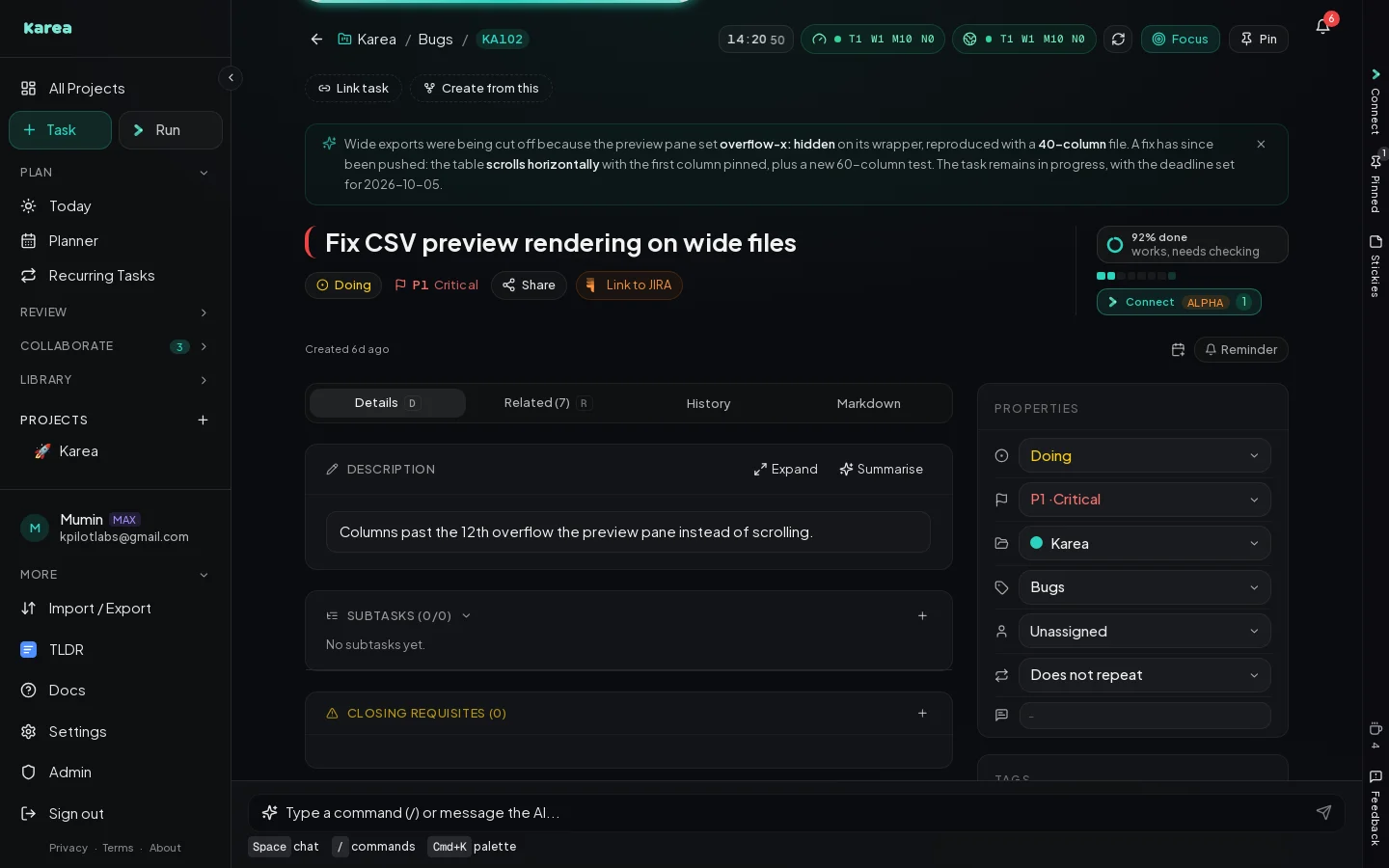
Click a task to open its page. Change its status, priority, project, category, assignee and recurrence from the properties on the right; write the description, subtasks and closing requisites (a checklist that must be done before the task can close) on the left. Related holds notes, open questions, meetings, resources and the AI sessions that worked on it, History every change, and Markdown a longer document. Press R for Related and D for Details; on Related, a number opens the section with that number.
Statuses go from Open to Doing, Review and Done, with Blocked, Backlog and Cancelled on the side. Put a task in Doing when you start it, so it shows in the Doing now strip. More in Tasks & Views.
4 Plan your day and your week
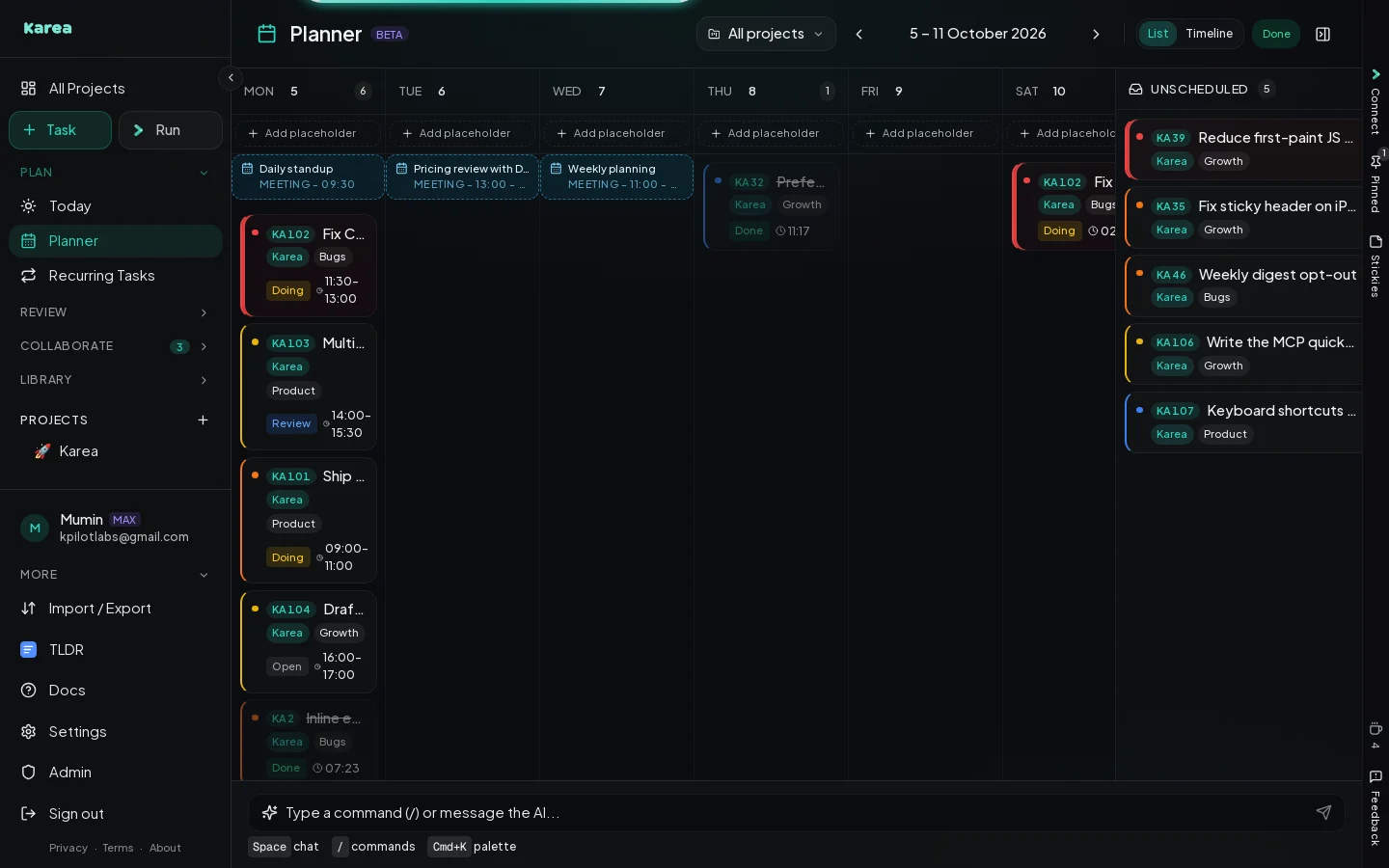
Today lays out your work sessions, meetings and deadlines on one timeline. The Planner shows the week: drag a task from Unscheduled onto a day to plan a work session for it, and drag it again to move it. Meetings sit at the top of each day. See Planner and Meetings.
5 Ask Karea
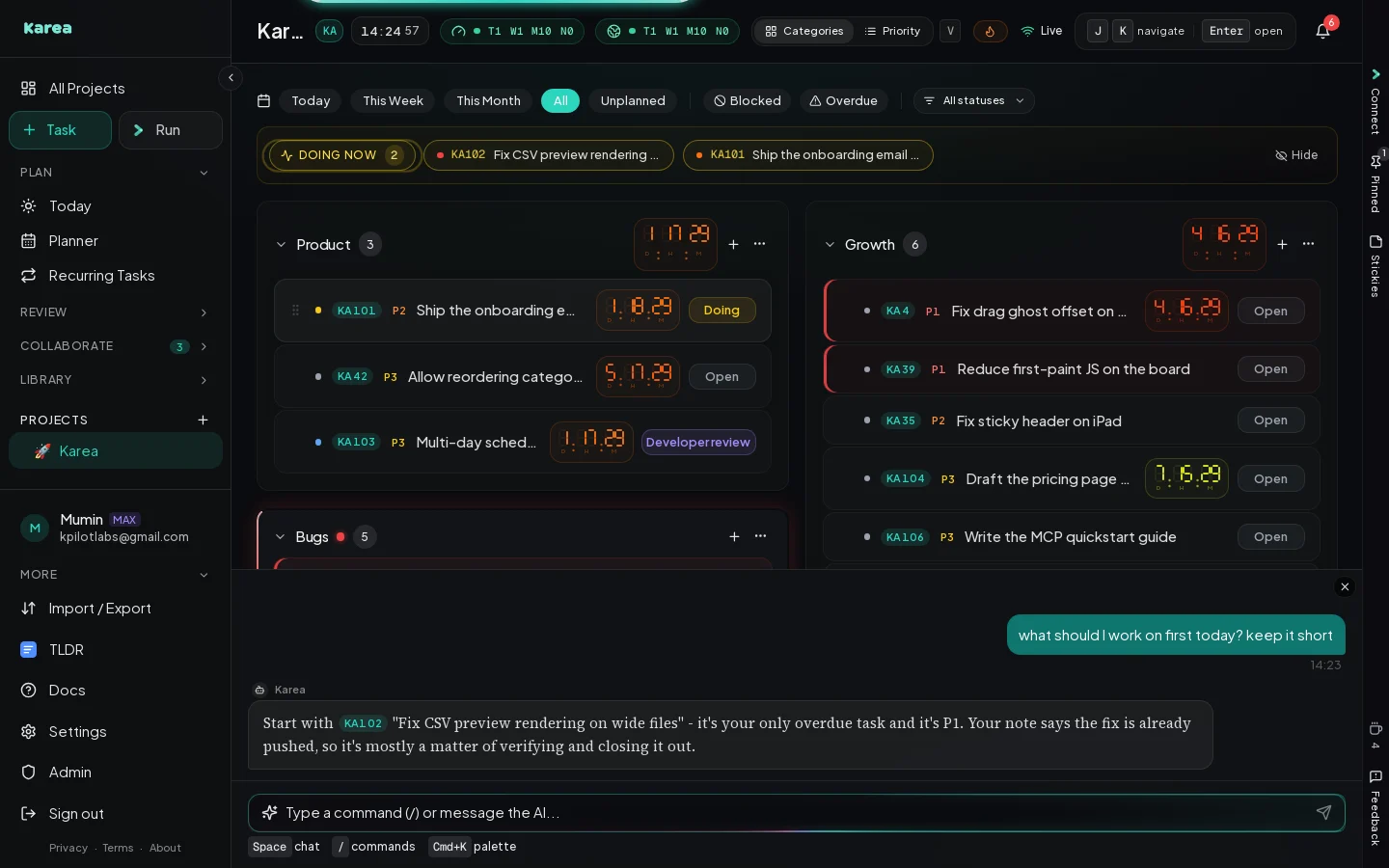
Press Space (or click the bar at the bottom) and type in plain English, without a /. The AI answers questions about your tasks and makes changes for you: "move all overdue tasks to friday", "what is blocked?", "recap me on what happened today". Task IDs in its replies open the task.
For a written summary of a day or a week, open Recap and generate a chat or email version (on paid plans). See Recap & AI.
6 Stay in your flow with quick actions
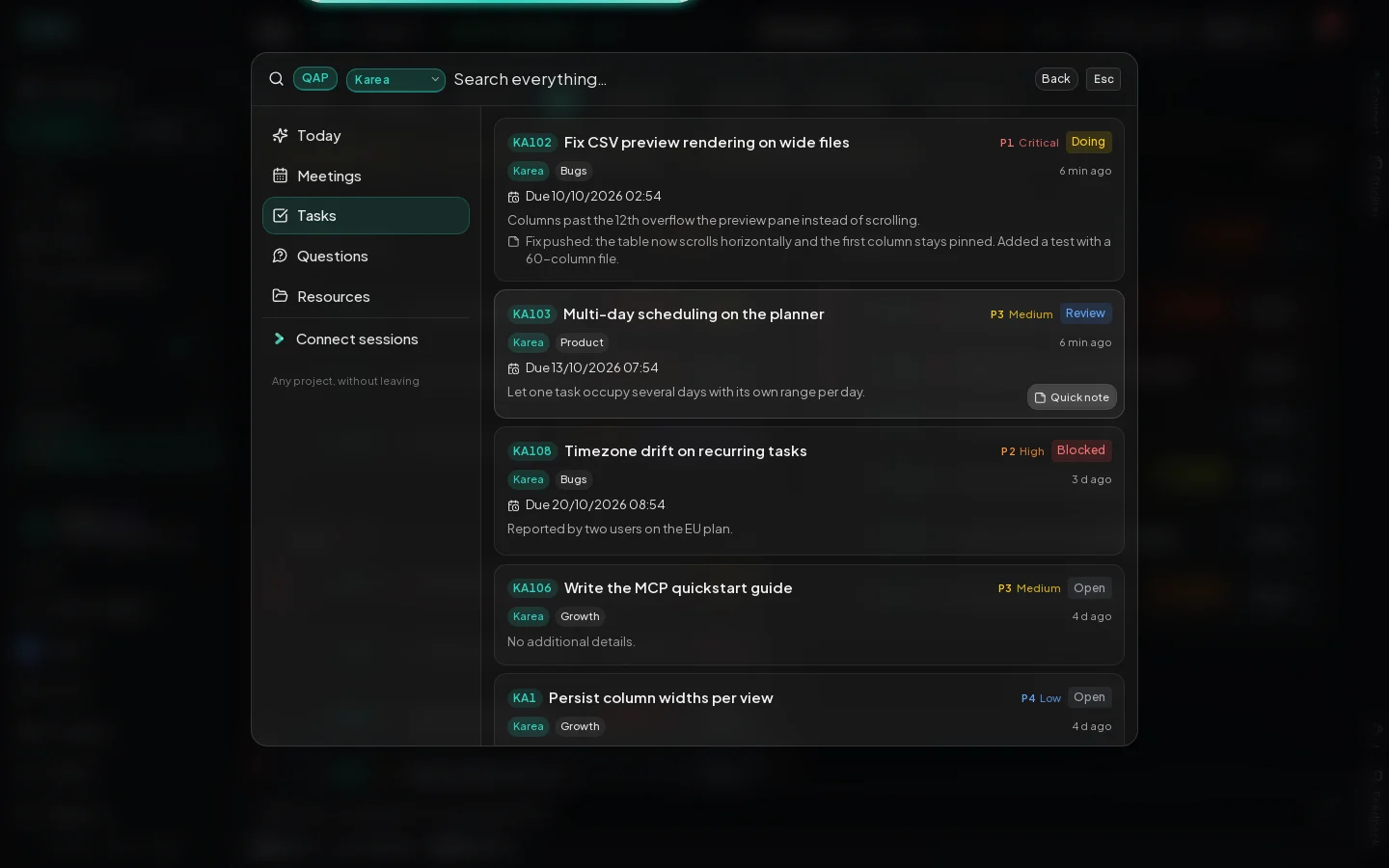
Press Cmd/Ctrl+P to open the Quick Actions Panel over the page you are on: today's plan, meetings, tasks from any project, open questions and resources, with a search across all of them. Check something, add a note or join a meeting, press Esc, and you are back where you were. Cmd/Ctrl+K opens the command palette, for jumping to any page. See More Features and Shortcuts.
7 Connect your AI assistant (MCP)
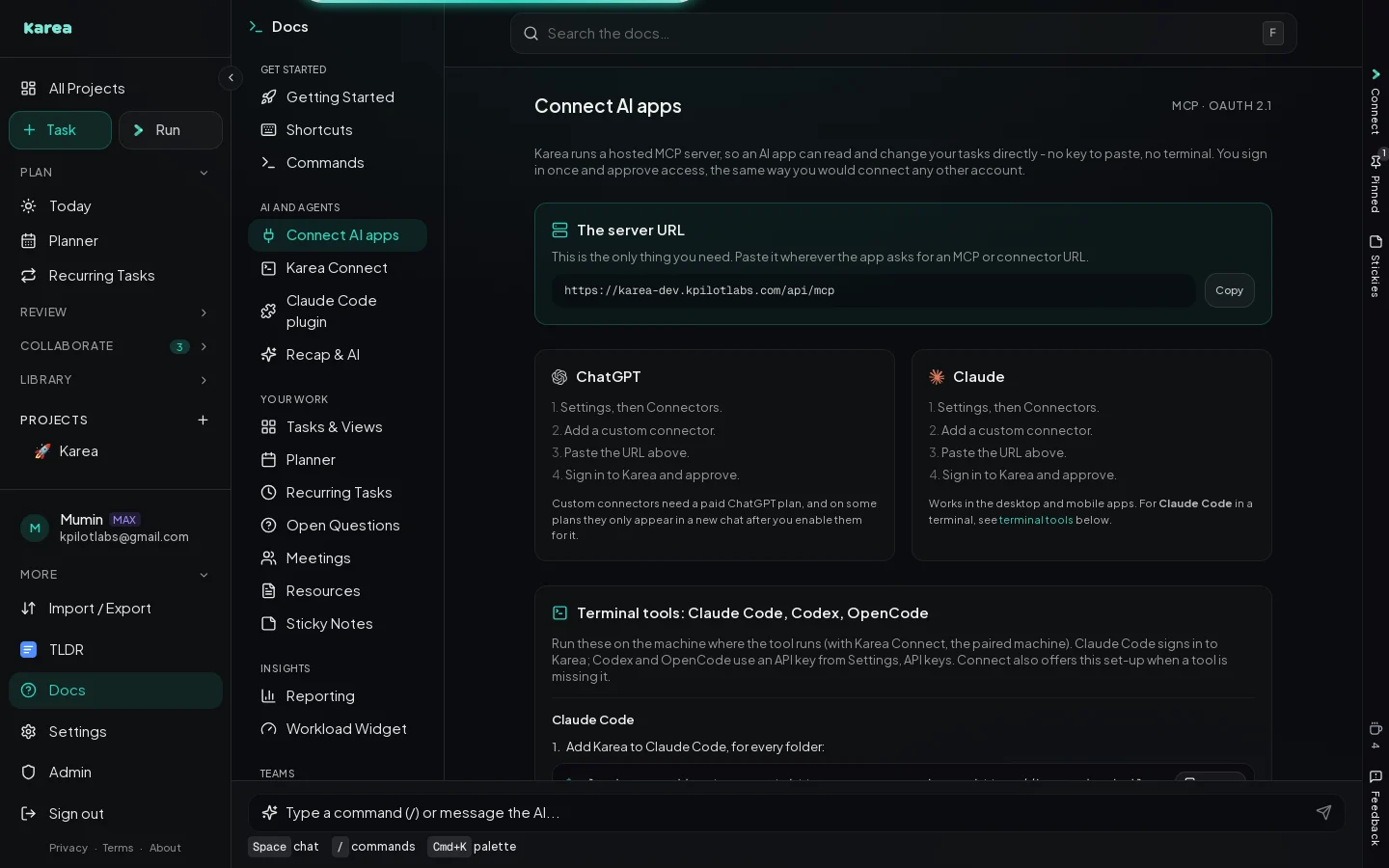
Karea runs an MCP server, so Claude, ChatGPT and other AI apps can read and update your tasks while they work for you. In Claude or ChatGPT:
- Open Settings, then Connectors, and add a custom connector.
- Paste the server URL
https://karea.app/api/mcp. - Sign in to Karea and approve.
For Claude Code, install the Karea skill from Settings, Claude Skill. The full guide, with what to do when a connection fails, is in Connect AI apps; API keys and the list of MCP tools are in the Developer reference.
8 Run Claude Code, Codex or OpenCode from Karea (Max plan)
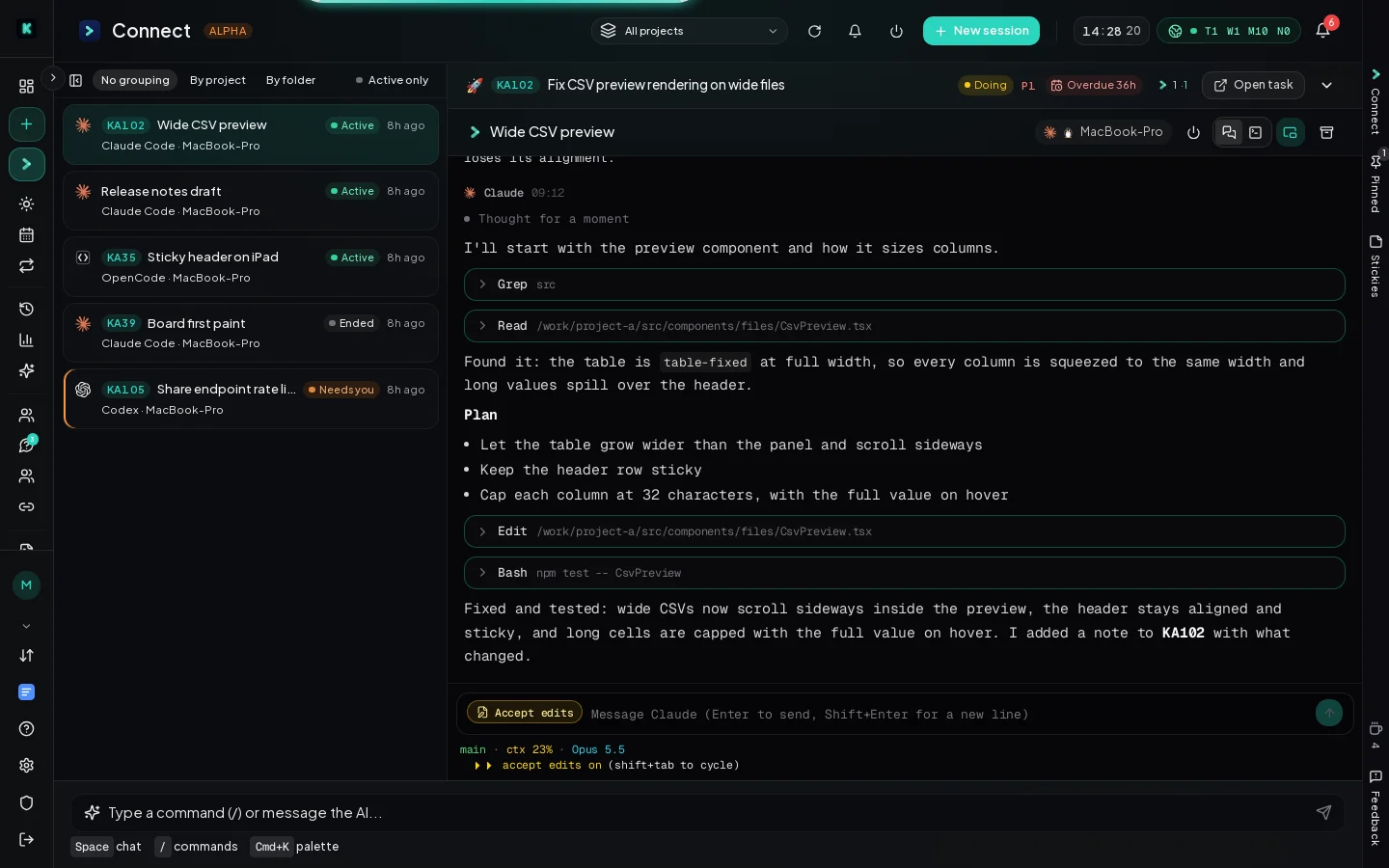
Karea Connect runs the AI coding tools on your own laptop, PC or server, and lets you work with them from inside Karea, end-to-end encrypted. Your code stays on your machine.
- Open Settings, Karea Connect, and click Pair a machine.
- Run the command it shows on that machine (it needs Node.js 20 or newer), choose the folders Karea may open there, and a passphrase that encrypts everything between your browser and the machine.
- On a task, click Connect, pick the machine, the tool and the folder, and start. The session gets the task as its brief.
Every session, running or finished, is on the Connect page in the sidebar, grouped by machine and project. A session that needs an answer shows it, wherever you are in Karea. Each project can have a default machine and folder, so a new session for it is ready to start. See Karea Connect.
Quick reference
Keyboard shortcuts
Press / anywhere to open commands, Space for AI chat
AI Chat
Type without / to talk to Karea AI. It understands natural language and task IDs.
SLA Formats
30m30 minutes5h5 hours2d2 days1w1 weektomorrowNext day 9ammondayNext Monday 9ameodToday 6pm2026-12-31Specific date17:00Today (or tomorrow) at 17:00Core Concepts
Projects
Your top-level workspaces. Switch via sidebar or Alt+↑/↓
Categories
Group tasks by type: Coding, Testing, or custom categories
Command Bar
Type / for commands or plain text for AI
Commands vs AI Chat
- Start with
/ - Instant, no AI processing
- Precise control with flags
- Chain with
;and&&
/nt -cat Coding -n Fix bug -prio 1
- Type without
/ - Understands natural language
- Handles complex/multi-step requests
- Can answer questions about tasks
- Searches all your tasks (titles, descriptions, documents and notes) when you ask whether something exists
- Also works on meetings (link tasks, questions or resources, create, move, edit attendees and the join link, delete), reminders (on tasks, meetings or questions), sticky notes, closing requisites, resources, Jira links and project sharing (sharing, changing a role and removing someone always ask you to confirm first)
- For a meeting that repeats, it asks whether you mean only that meeting or the whole series, and asks again before deleting future meetings
- Sees everything around a task: tags, open questions, meetings, links, reminders, work sessions, Context entries, review stage, recurrence, pinned notes, AI coding sessions, GitHub, Notion and Loom
- Can block time for a task ("block 2-4pm today for KPL12"), write its Context, set its review stage or recurrence, pin a note, and give you an activity recap
- Replies show as chat bubbles; a task ID in them opens the task and previews it on hover, a question ID opens the question in a window (Cmd/Ctrl-click opens the Questions page)
- Closing the chat (Esc, click outside, or the X) keeps the conversation; Space brings it back
- Say "keep it short" or "in one sentence" and it does
move all overdue tasks to tomorrow